Use this guide for an additional website you control. Open Dhru Chat → Settings → Channels → Messenger. Your existing Fusion storefront is allowed automatically. Check its widget before adding another script so you do not install it twice.
1. Enable Messenger
On Widget → Channel, turn on Messenger channel and select Save changes. Then choose AI handling and human handoff for your team.
2. Approve your website
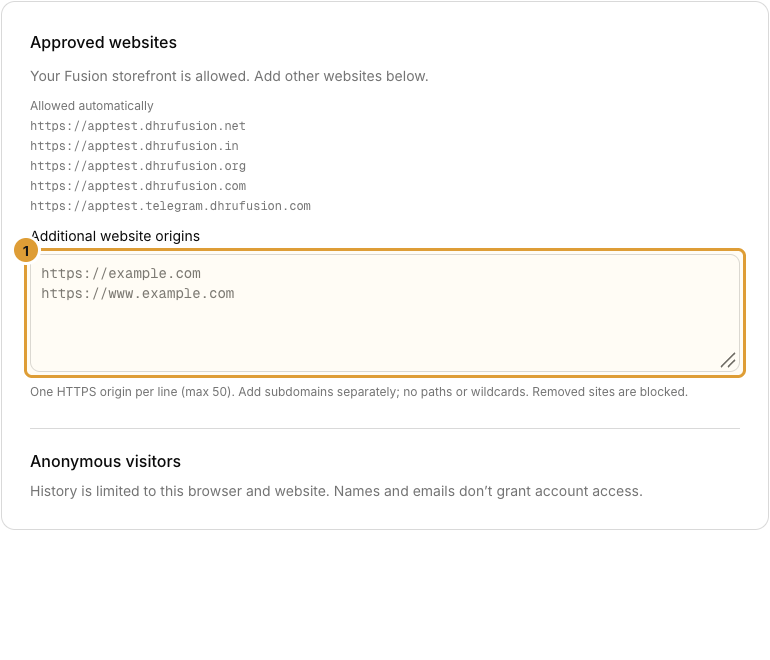
- Open Security and review Allowed automatically.
- Add extra websites under Additional website origins (1), one HTTPS origin per line. For example, https://example.com and https://www.example.com are separate origins.
- Include a nondefault port if your HTTPS website uses one. Add subdomains separately.
- Use only the scheme and host, without a page path, query, wildcard or sign-in information. You can add up to 50 origins.
- Select Save changes and wait for confirmation.
Removing an approved origin blocks that website’s widget access. Keep the origins required by your current sites while preparing a new installation.
3. Copy and add your script
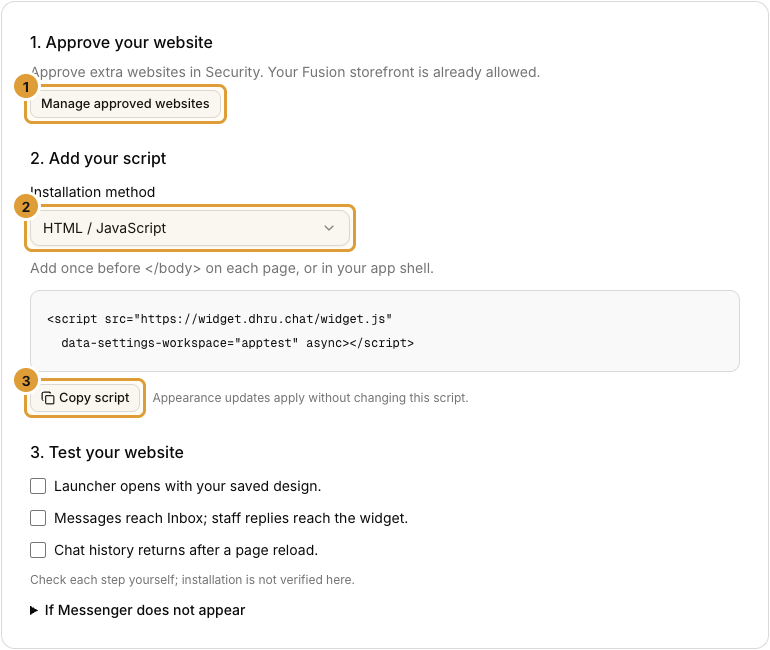
- Open Install. Manage approved websites (1) returns to Security.
- Choose Installation method (2).
- Select Copy script (3) for your workspace. The screenshot uses App Test; do not copy its workspace name.
- Add the supplied snippet once using the method below, then publish your website changes.
| Method | Where to add the generated snippet |
|---|---|
| HTML / JavaScript | Before the closing body tag on each page, or once in the shared app shell |
| WordPress | In your site footer using your theme or an approved code tool |
| Google Tag Manager | In a Custom HTML tag triggered on All Pages; preview, then publish the container |
Use the generated snippet as supplied. Do not add staff tokens or passwords to it. Later appearance changes use the same script; save the new design instead of installing again.
4. Test the published website
- Open the actual HTTPS website and its launcher.
- Check the greeting, colors, placement and mobile layout.
- Send a message you are authorized to use for testing.
- Confirm it arrives in the correct workspace’s Inbox.
- Send a staff reply and confirm it reaches that widget.
- If Conversation history is enabled, reload in the same browser and website and check the conversation returns.
The Install checklist is for manual checks. Ticking it is not an automatic installation or delivery test. Anonymous history belongs to that browser and website; clearing or blocking storage can remove continuity.
Messenger does not appear
Check the saved channel switch, exact website origin, workspace-specific snippet and whether the script loads once. If your website uses a Content Security Policy, ask its administrator to allow the widget assets, workspace API and realtime connections it needs. Keep the policy scoped to your intended services. Check browser errors privately without sharing tokens.
Continue with widget customization and launcher position and offsets.