Open Dhru Chat → Settings → Channels → Messenger → Conversations. These settings control website Messenger. Other connected channels have their own AI preferences where offered.
1. Choose AI or staff support
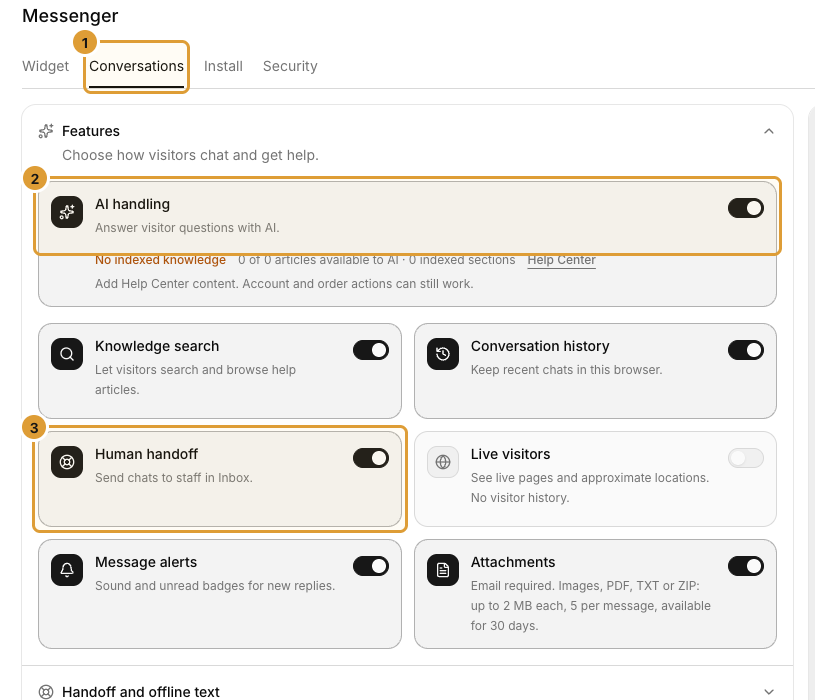
- Select Conversations (1) and expand Features.
- Set AI handling (2) on to allow automated answers, or off to stop website AI handling.
- Set Human handoff (3) on if visitors should be able to send chats to staff in Inbox.
- Select Save changes and wait for confirmation.
- Test the saved behavior on your actual website.
| AI handling | Human handoff | Website chat experience |
|---|---|---|
| On | On | AI can answer and visitors can reach staff |
| Off | On | Human support without website AI answers |
| On | Off | AI support without the human-handoff option |
| Off | Off | Messaging is hidden; separately enabled knowledge search can still provide self-service |
Turning off AI differs from turning off the Messenger channel. It does not disable AI for WhatsApp, Telegram, Slack or Discord. Review each connection separately.
2. Prepare knowledge for AI
Read the knowledge notice below AI handling. An enabled switch does not mean articles are available to AI. Add accurate customer-facing Help Center content, choose its AI availability, and check indexing before relying on knowledge answers. Zero indexed articles means no indexed article knowledge; other account or order capabilities can still be available. Control article visibility and AI use.
3. Choose the other live-chat features
| Feature | What the switch does |
|---|---|
| Knowledge search | Lets visitors search and browse eligible help articles |
| Conversation history | Shows recent chats in the same browser |
| Human handoff | Lets visitors send chats to staff in Inbox |
| Live visitors | Shows live pages and approximate locations when your plan allows it; it is not visitor history |
| Message alerts | Controls widget sounds and unread badges for new replies |
| Attachments | Allows the supported customer file-upload flow when your plan allows it |
Attachments require Professional or Enterprise and a customer email address. The form allows images, PDF, TXT and ZIP, up to 2 MB each and five files per message, with 30-day availability. Live Visitors requires Enterprise feature access. Follow the displayed plan guidance when a control is unavailable.
Message alerts differ from staff browser/sound notification preferences in Inbox and unread-reply emails. Configure Channels → Email separately for customer email follow-ups.
4. Set handoff and fallback messages
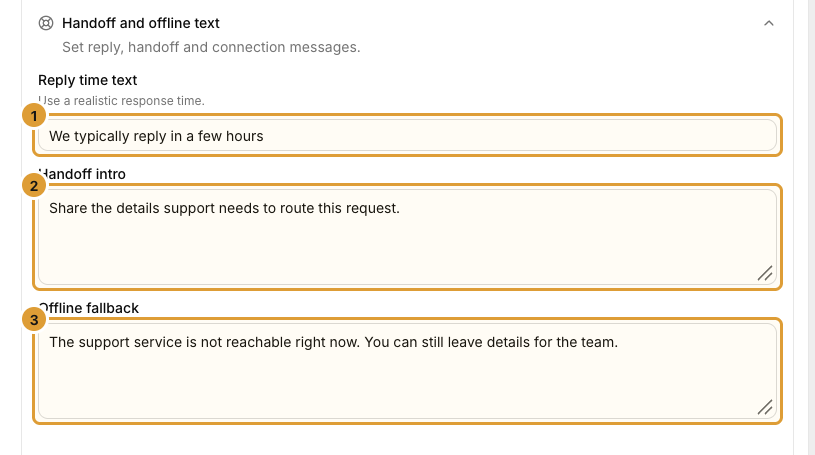
- Expand Handoff and offline text.
- Set Reply time text (1) to a realistic expectation.
- Write Handoff intro (2) to ask for details your team needs.
- Write Offline fallback (3) for a connection problem. It is not a staffing schedule.
- Select Save changes and test the customer flow.
Check the result
Test an answerable question and, when handoff is enabled, a request for a person. Check the correct Inbox queue and confirm a staff reply returns. The design preview does not prove real AI or message delivery. When staff take over, check the current handling and assignee before returning the conversation to AI. Assign, hand off and resolve conversations.