Open Dhru Chat → Settings → Channels → Messenger → Widget. These controls change the website widget’s presentation. Review your draft in the sample preview, then select Save changes to apply it.
1. Set the name and appearance
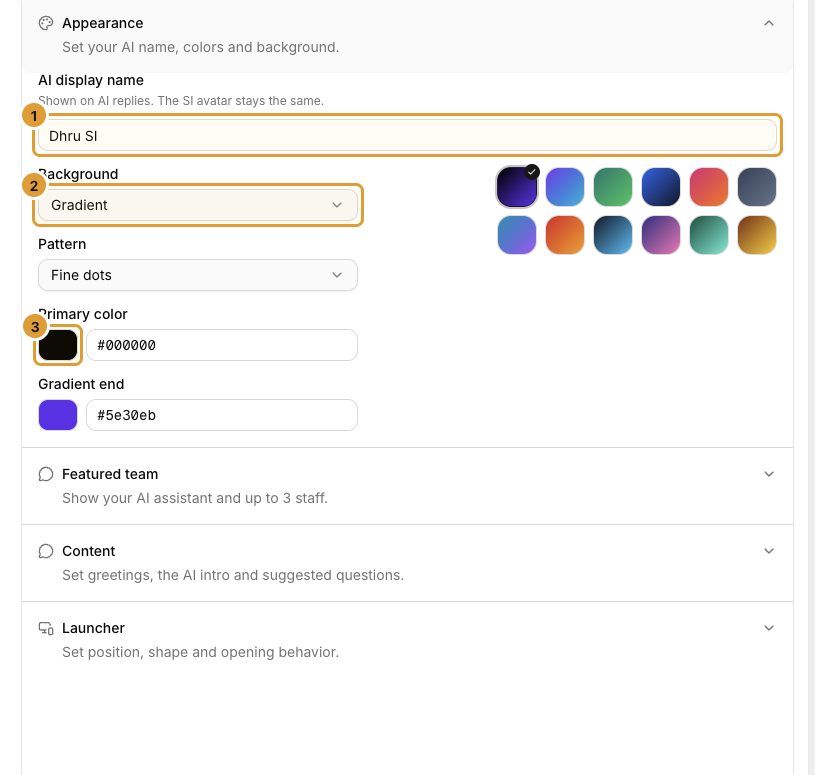
- Expand Appearance.
- Set AI display name (1), which appears on AI replies. This field does not replace the SI avatar.
- Choose Background (2), then a Pattern when offered.
- Set Primary color (3) and Gradient end when a gradient is used. A preset can be a starting point.
- Check that headings, buttons and text remain readable.
2. Choose your featured team
undefined
3. Write the welcome content
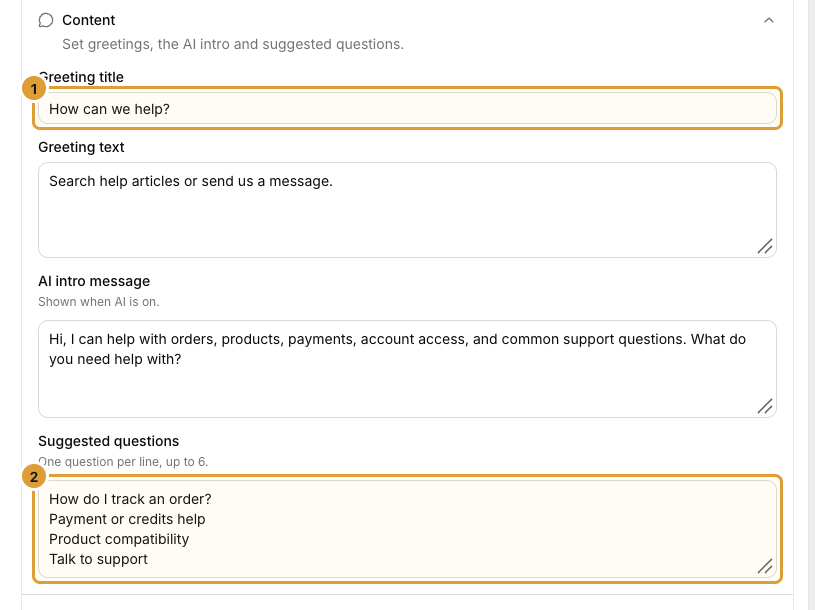
| Field | What customers see |
|---|---|
| Greeting title (1) | The opening headline |
| Greeting text | A short explanation of how to get help |
| AI intro message | The introduction when AI is enabled |
| Suggested questions (2) | Up to six starter questions, one per line |
Use questions your service and published knowledge can answer. A suggested question does not create an answer or process an order.
4. Preview and save
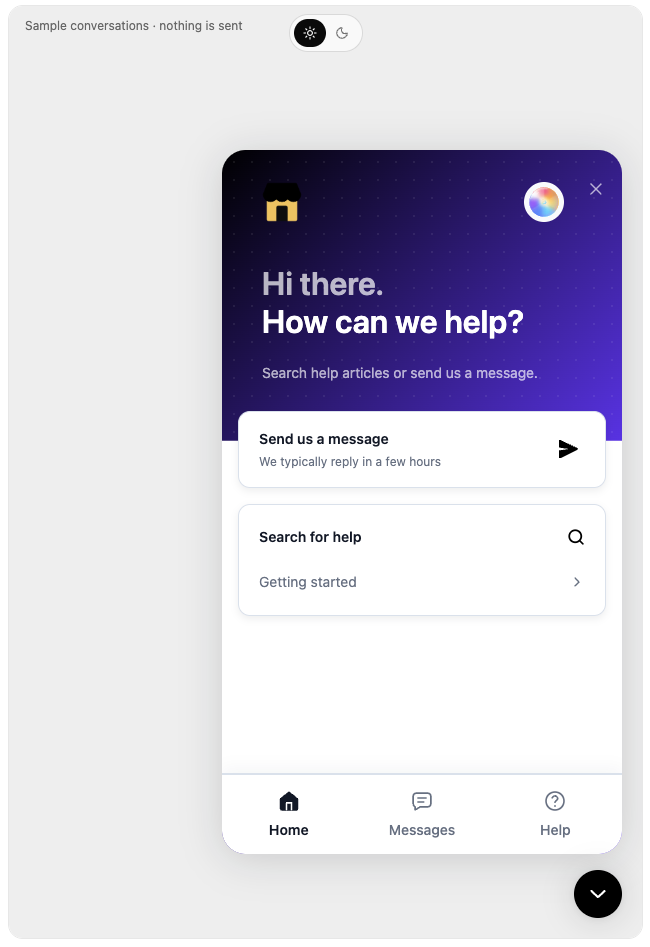
- Use the light and dark preview controls to review both appearances. Changing the selected color mode is part of your draft.
- Check the greeting, readability and featured profiles.
- Select Save changes and wait for confirmation.
- Reload your real website and check desktop and mobile views. The sample preview sends nothing and is not a delivery test.
The installed script can stay in place after appearance changes. See Launcher position and offsets and AI and live-chat settings for those controls.