Before publishing
Open Dhru Chat → Campaigns and select the message. Confirm that Messenger v2 is enabled and installed on the intended website, the campaign has a message and at least one device, and your role has publish access. The delivery service must also be available. A saved draft is not yet a live campaign.
The screenshots use an unsaved template and an empty test list. The publish confirmation was opened for illustration but was not submitted; no campaign was published or sent for this guide.
Review the message and rules
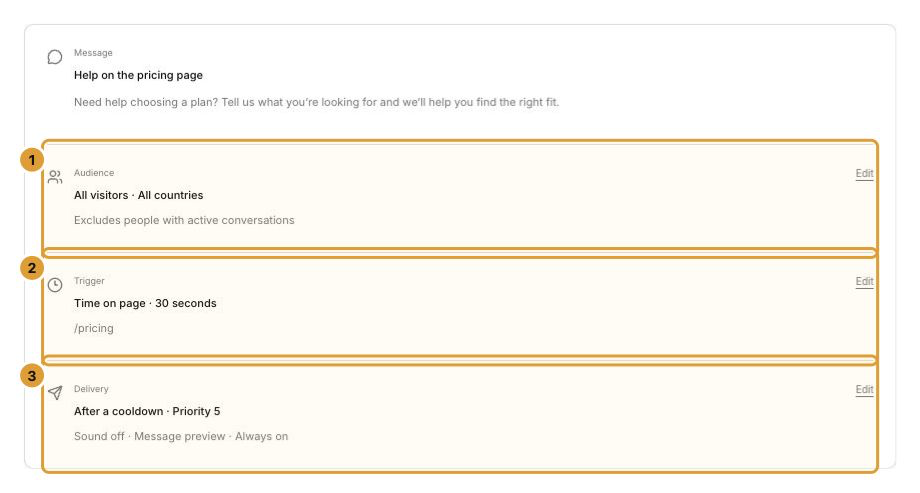
Open the Review step. Read the message, then check Audience (1), Trigger (2), and Delivery (3). Use each Edit link to return to the relevant step. Verify the page path, devices, frequency, priority and timezone/date window as well as the message itself.
Publish deliberately
- Choose Review & publish.
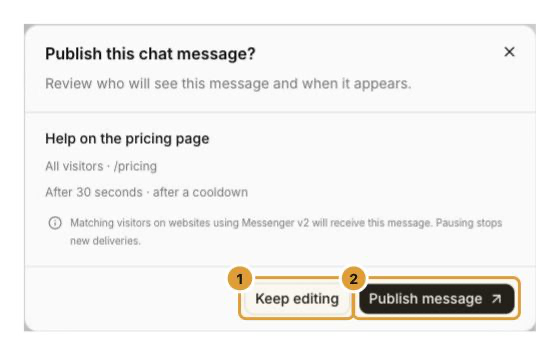
- Read the confirmation’s audience, path, trigger and frequency. Choose Keep editing (1) if anything needs correction.
- When it is ready, choose Publish message (2). Confirm the success message and Live state in the list. A Live campaign can deliver to matching visitors only when the website Messenger and all its rules allow it.
Publishing may save the draft before applying the live version. If an error occurs, check the campaign list and current state before retrying; a draft may already have been saved. A success state is not proof that a visitor has seen the message.
Work with Live, Draft and Paused campaigns
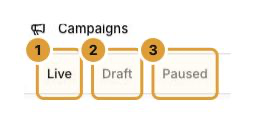
Use the list tabs to show Live (1), Draft (2) or Paused (3) messages; All shows every state. Search by name or refresh the list when needed.
Open a campaign row to edit it. Saving draft changes on a Live campaign does not replace the published version until you publish again. To stop new deliveries, open that Live campaign’s Actions menu and choose Pause. To resume, open the paused campaign, review it and publish it again.
The Actions menu can also open an unsaved duplicate; use Save draft to store the copy. Delete is available for Draft or Paused campaigns; pause a Live campaign first, then read the deletion confirmation. Delivery history is retained. Do not duplicate a campaign merely because a save or publish response was delayed; check the current list first.
Interpret lifetime results
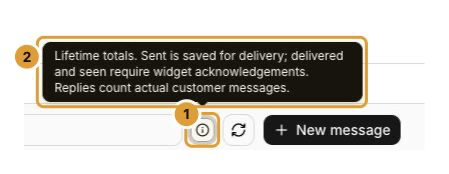
Use Campaign metric definitions (1) to open the explanation (2). The campaign list reports lifetime totals:
| Metric | Meaning |
|---|---|
| Sent | A campaign delivery was saved for delivery; it is not proof that the widget displayed it |
| Delivered | The widget acknowledged delivery |
| Seen | The widget acknowledged that the visitor saw it |
| Replies | Actual customer messages associated with campaign deliveries |
A dash means a count is unavailable; it is not the same as zero. If a Live campaign has no results, check website Messenger, delivery availability, the visitor’s audience and active-conversation status, matching path, trigger, devices, frequency and date window. Test with an authorized visitor on the intended website and verify the actual experience.
Continue
Create and preview a website chat campaign Choose campaign audiences and triggers Set campaign delivery rules and schedules Enable and install the website chat widget