Open Delivery
In Dhru Chat → Campaigns, open a campaign and choose the Delivery step. Review Audience and Trigger first. The screenshots show unsaved example choices, including a seven-day cooldown and an empty date range; they do not schedule a real campaign.
Choose the visitor experience and devices
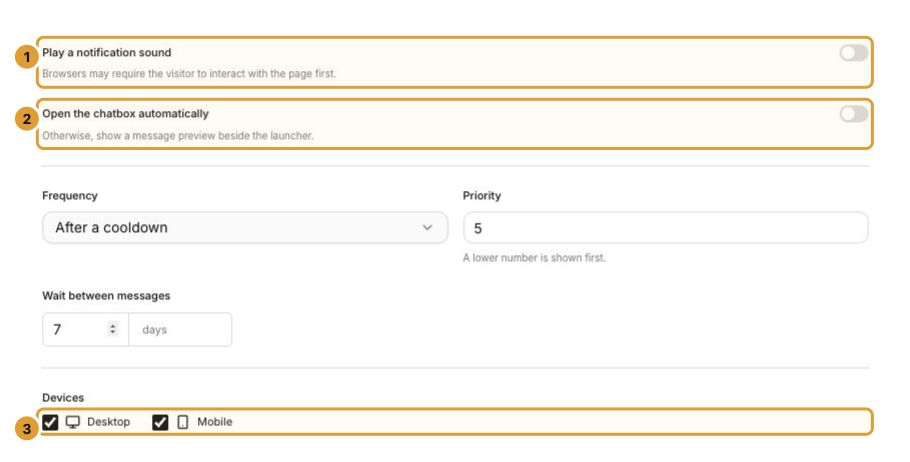
- Turn Play a notification sound (1) on only when useful. A browser may require the visitor to interact with the page before sound can play.
- Choose whether to Open the chatbox automatically (2). When off, the message is shown as a preview beside the launcher.
- Select Desktop and/or Mobile (3). At least one device is required to publish. Exit intent requires Desktop.
The Audience step separately controls whether to skip people with an active conversation. Review that switch when deciding how intrusive a message should be.
Set frequency and priority
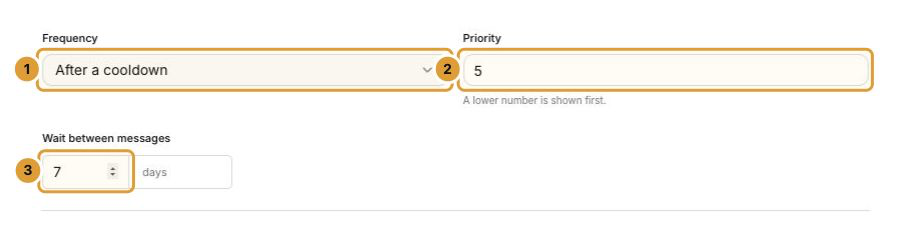
- Select Frequency (1): Once per visitor, Once per visit, or After a cooldown.
- Set Priority (2), from 1 to 100. When several campaigns match, a lower number is considered first. Only one proactive message is shown at a time.
- For After a cooldown, enter the wait in days (3). The example shows seven days; choose a value that suits your own campaign.
Frequency depends on the recognized visitor and prior delivery. A visit ends after 30 minutes of inactivity. A new browser or cleared browser data may be recognized differently, so do not treat a frequency setting as a guarantee about a person across all devices.
Choose a delivery window
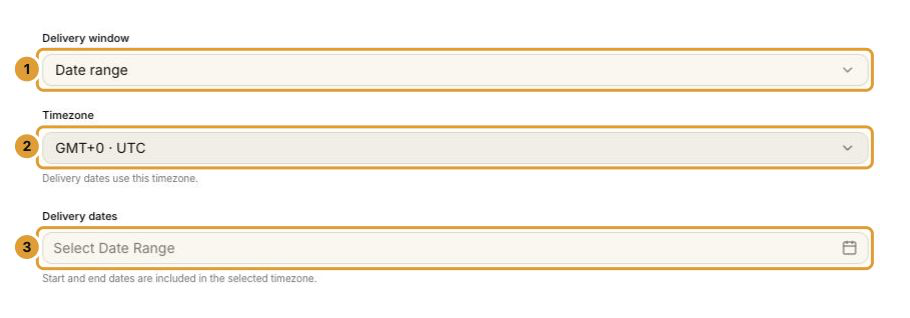
- Under Delivery window (1), choose Always on or Date range.
- For a range, select the Campaign timezone (2).
- Choose the start and end in Delivery dates (3). Both dates are included in that timezone; the end must not be before the start.
A Live campaign with a future start waits for its date window. After the end date it stops matching new deliveries, even though its state can still be Live. Update or pause it intentionally when the campaign is over.
Review and save
Check the message, visitor conditions, page rule, trigger, frequency, devices and schedule together. Use Save draft to keep changes private, or go to Review & publish when the campaign is ready. Saving draft changes on a Live campaign leaves its previously published version in place until you publish the changes.
Continue
Choose campaign audiences and triggers Publish, pause and review campaign results