Before you begin
Campaigns are proactive chat messages for eligible visitors on a website using Messenger v2. Open the correct workspace and Dhru Chat → Campaigns. You need Campaigns management access to create and edit a message; publishing also requires publish access and available delivery. Set up and enable your website Messenger first.
The screenshots show an unsaved template in a test workspace. No campaign was saved or published for this guide. The visitor simulation is a sample preview and does not send messages or start conversations.
Choose a starting point
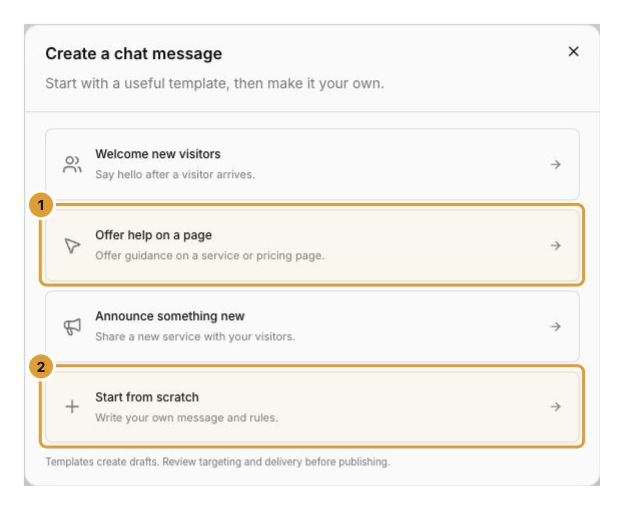
Select New message. Choose a suitable template such as Offer help on a page (1), or choose Start from scratch (2). Welcome and announcement templates are also available. A template fills an editable example; it is not live.
Write the message
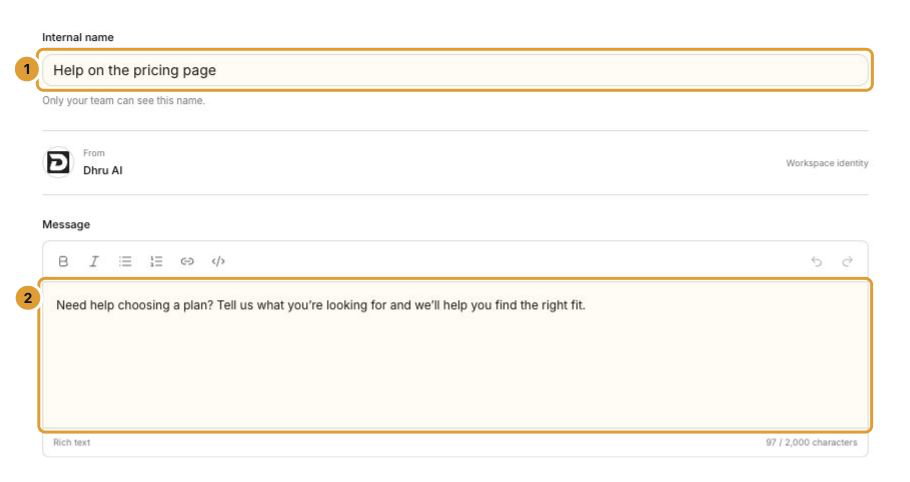
- Enter an Internal name (1) that helps your team recognize the campaign. Visitors do not see this name.
- Write the visitor-facing Message (2), up to 2,000 characters. Keep the offer clear and relevant to the page. Use the formatting toolbar for supported emphasis, lists, code and links.
- Check the From line and preview: it uses the workspace identity. Messenger appearance is configured in the website widget settings.
An optional image may be uploaded as JPG, PNG or WebP up to 5 MB. Add its description before publishing. Image upload is a separate action from saving the campaign; check the image and its description before continuing.
Add optional buttons and quick replies
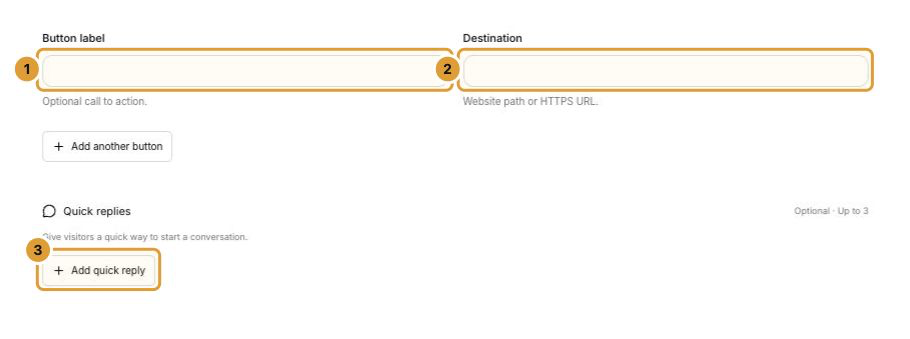
- Enter a Button label (1) and its Destination (2), using an HTTPS URL or a website path beginning with /. Use Add another button for a second action when useful.
- Use Add quick reply (3) to offer up to three short choices.
- Review wording and destinations; remove actions that do not help the visitor take the next step.
Preview the visitor experience
Choose Desktop preview (1) or Mobile preview (2). Use Run visitor simulation to see the message and trigger in the sample Messenger; after it finishes, use Run again (3). The 10× option speeds up the simulation, while 1× uses the displayed timing.
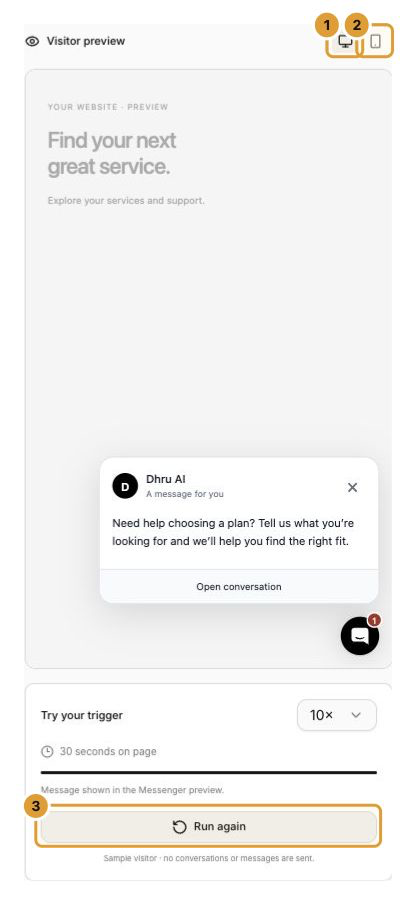
The preview is a design and trigger illustration. It does not send a customer message or prove that a real visitor matches the audience, schedule and device rules. Test the published result on the intended website separately.
Save a draft and continue
Use Save draft to save your work for the team. A new template in the editor is not saved until you choose a save or publish action. Then configure Audience, Trigger and Delivery before reviewing and publishing. On a Live campaign, Save draft changes keeps the existing published version active until the changes are published.
Continue
Enable and install the website chat widget Choose campaign audiences and triggers Set campaign delivery rules and schedules