Open the campaign
In Dhru Chat → Campaigns, create a message or open a saved one, then select the Audience step. Changes in the editor remain a draft until saved or published. The screenshots show an unsaved example and no customers were contacted.
Choose the people and conditions
- Under People, choose an Audience (1): All visitors, New visitors, Returning visitors or Logged-in customers.
- Narrow Country (2) and Language (3), or leave them at All countries and Any language. The selected conditions are combined, so a visitor must match all applicable choices.
- Decide whether to keep Skip people with an active conversation enabled. When enabled, the campaign waits for people who are not already in an active conversation.
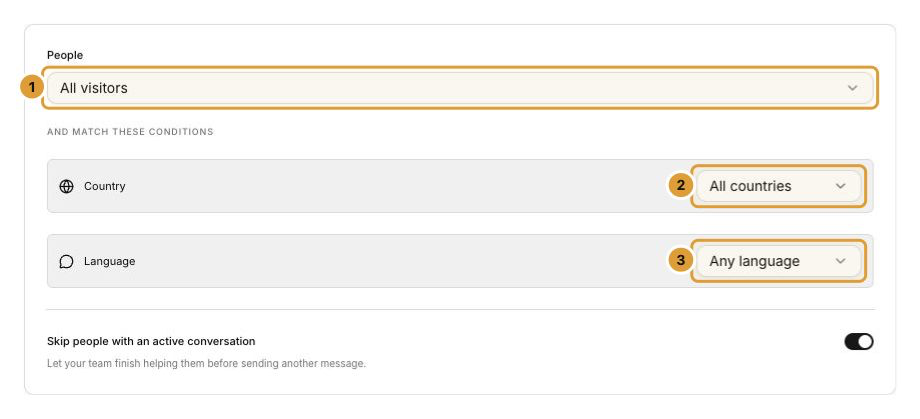
Anonymous visitors are recognized in the same browser; signed-in customers use their account. A visit ends after 30 minutes of inactivity. A visitor’s available country or language must match a selected condition; broad settings can be useful when you do not want to exclude people whose details are unavailable.
Match the page
Open the Trigger step. Choose a Page rule (1), then enter the Page path (2) when required:
| Page rule | What it matches |
|---|---|
| All pages | Any eligible website page |
| URL path is | One exact path, such as /pricing |
| URL path matches | A path pattern using , such as /services/ |
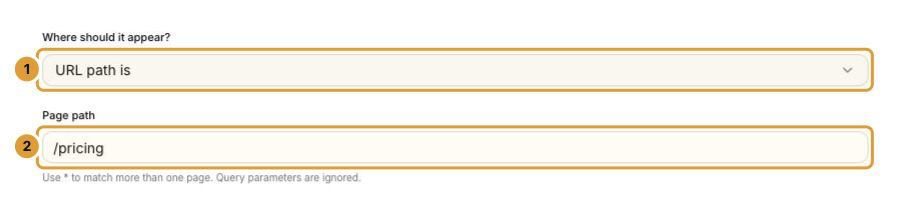
Use the website path rather than a full domain. Query parameters are ignored for page matching. Check the actual path on the website before publishing; a rule that does not match the page cannot trigger there.
Choose the moment
- Select a trigger (1): Time on page waits on a matching page; Time on website uses time spent on the website; Exit intent reacts when a desktop visitor’s pointer leaves the page.
- For timed triggers, set Wait before showing (2), from 5 to 3,600 seconds. Timing is approximate and pauses while the visitor’s tab is hidden.
- If using Exit intent, enable desktop delivery in the Delivery step. It does not trigger on mobile.
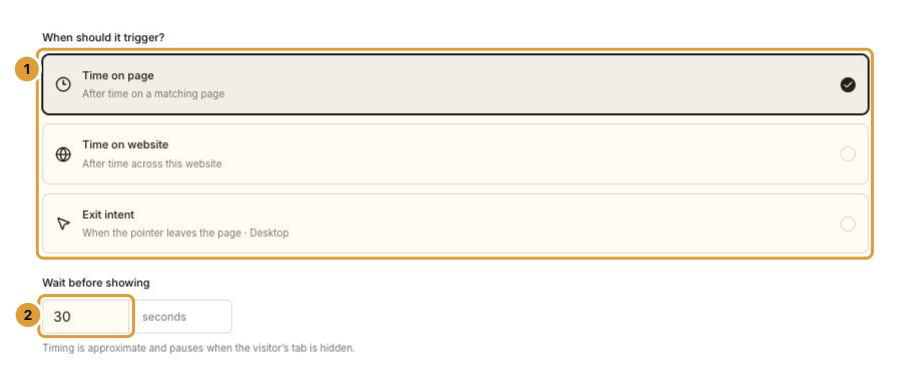
Use the visitor simulation to check the message and timing visually, then save the draft. Simulation is a sample and does not prove that every real visitor meets your audience, page, device and schedule conditions.
Continue
Create and preview a website chat campaign Set campaign delivery rules and schedules Publish, pause and review campaign results