Open Dhru Chat → Settings → Channels → Facebook. This channel is available only in enabled workspaces. If All channels says Coming soon, use an available channel or ask your workspace owner about availability.
Before you connect
Use a Facebook Page you are authorized to manage. This channel receives messages to that Page; it is separate from your personal Facebook inbox.
Connect the intended Page
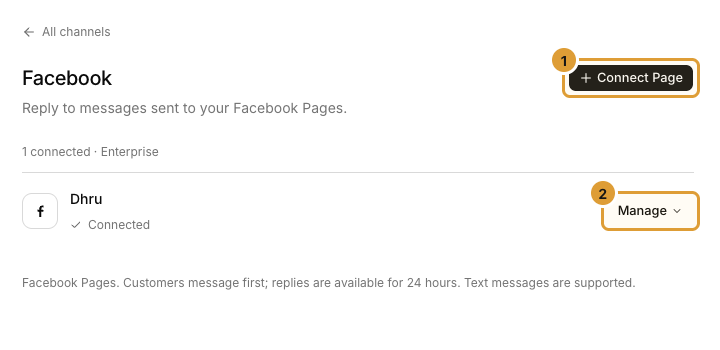
- Select Connect Page (1).
- Complete the displayed Meta authorization for the intended business identity and review the requested access.
- On return, choose the intended Page from the offered list and confirm Connect.
- Check that the correct identity appears with Connected.
- Repeat separately to add another identity when your allowance permits it.
Test messages and replies
Send an authorized test from a separate customer account to the connected Page. Check the correct Inbox, reply there, and confirm receipt in Facebook. Customers message first; the current integration supports text replies within its displayed 24-hour window. A saved connection does not permit unrestricted outbound messages or unsupported media.
Manage the connection
Open Manage (2) for Rename or Disconnect. Renaming changes the label in channel settings. Disconnecting stops new messages from this account reaching Inbox and keeps existing conversations. Read the confirmation for the intended identity.
The current Facebook settings page does not offer an AI answers switch. Do not use Messenger’s switch as a substitute or assume connecting enables AI. Use the controls available for this channel.
A connection cannot be completed
Check the intended Page, your Meta account’s access, channel availability and connection allowance. If you cancelled authorization, start again when ready. On failure, follow the displayed recovery guidance instead of repeatedly creating connections.
Continue with all channel setup guides or the Inbox guide.