Open Dhru Chat → Settings → Channels → Discord in the intended workspace. You need channel-management permission and an available connection allowance.
1. Add the connection
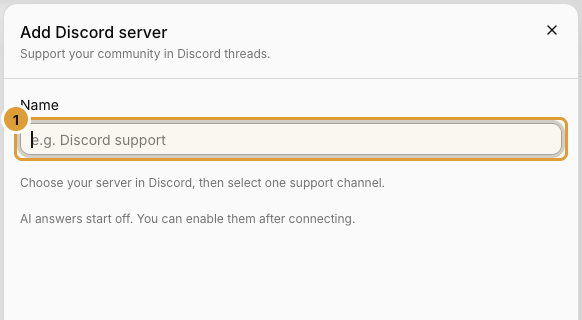
- Open Settings → Channels → Discord and select Add server.
- Give the connection a recognizable Name (1).
- Select Connect Discord.
- In Discord, choose the intended server, review permissions and authorize with an account allowed to install the app.
- Return to Chat and open Manage for that connection.
- Choose one Support channel, then Save.
- Confirm the saved destination and connection status.
2. Check which messages are connected
Only the selected support channel is routed into Inbox. Dhru handles community support in threads; this does not import every server channel or direct message. The app needs the access shown by its authorization flow and permission for the chosen channel. See Discord’s authorization documentation.
3. Enable or disable AI answers
New connections start with AI answers off. After connecting, open Manage for the intended server, set AI answers, then Save. AI uses public Help Center content and can hand off to your team. Review knowledge readiness and AI credit availability. Turning AI off keeps the connection available for staff support.
Configure each connection separately; changing Messenger or another server does not change this one. Done closes an unchanged form; Save appears when settings change. Cancel and discard if you do not want to apply a draft.
4. Test the conversation
Send a test you are authorized to use to the connected support channel. Confirm it reaches the correct Inbox. Reply as staff and confirm receipt in the original thread. Test AI and a request for a person separately if enabled. File support does not mean attachments are supplied to AI for interpretation.
Change or disconnect
Use Manage to rename the connection, change its support channel or change AI answers, then Save. To stop it, use Disconnect and confirm the intended connection. Other connections stay active; disconnecting is not a refresh action.
Setup needs attention
Check the server and the app’s access to the selected channel and threads. Refresh destinations after correcting permissions, then confirm the same connection. Do not grant unrelated server access to make a test pass. Follow the allowance and plan guidance shown. An empty setup screenshot does not prove authorization or delivery is complete.
Continue with the Inbox guide or all channel setup guides.