Open your notification preferences
Open Dhru Chat → Settings → Notifications. These are personal preferences for the current browser, and changes save automatically. They do not set the whole team’s preferences. The screenshots show existing settings; no switches were changed to capture them.
Choose delivery methods
On Delivery, use Browser alerts (1) to request desktop alerts. If prompted, choose whether to allow notifications for this Chat site. A browser or operating-system block must be resolved in its notification settings before alerts can appear.
Use Sound (2) for a short activity sound. If your browser blocks playback, click inside Chat and try again. Browser alerts and sound are separate controls.
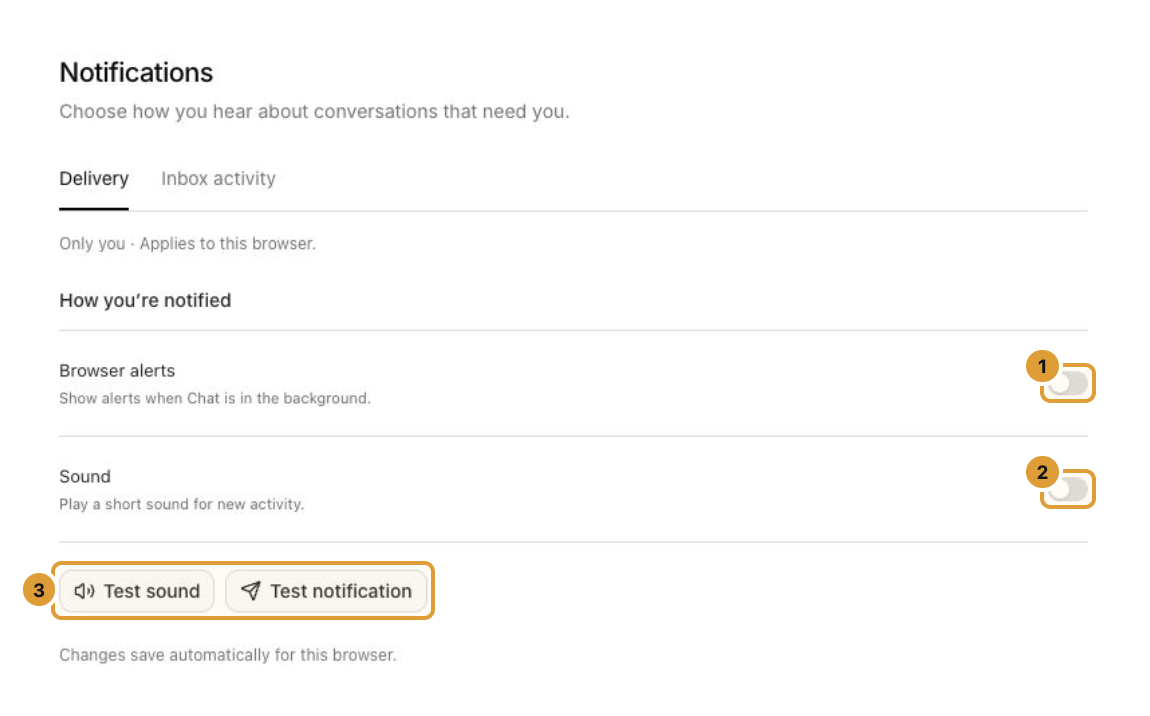
Use Test sound or Test notification (3) to verify the relevant delivery method. Test notification requires browser permission. A successful test checks that delivery method; it does not prove that every Inbox event matches your activity and conversation choices.
Choose Inbox activity
Select the Inbox activity tab.
- Keep Inbox notifications (1) on to use the activity preferences. Turning it off disables those Inbox alerts and their category controls.
- Under Activity (2), choose the events you need.
- Under Conversations (3), choose which conversation categories should notify you of new customer messages.
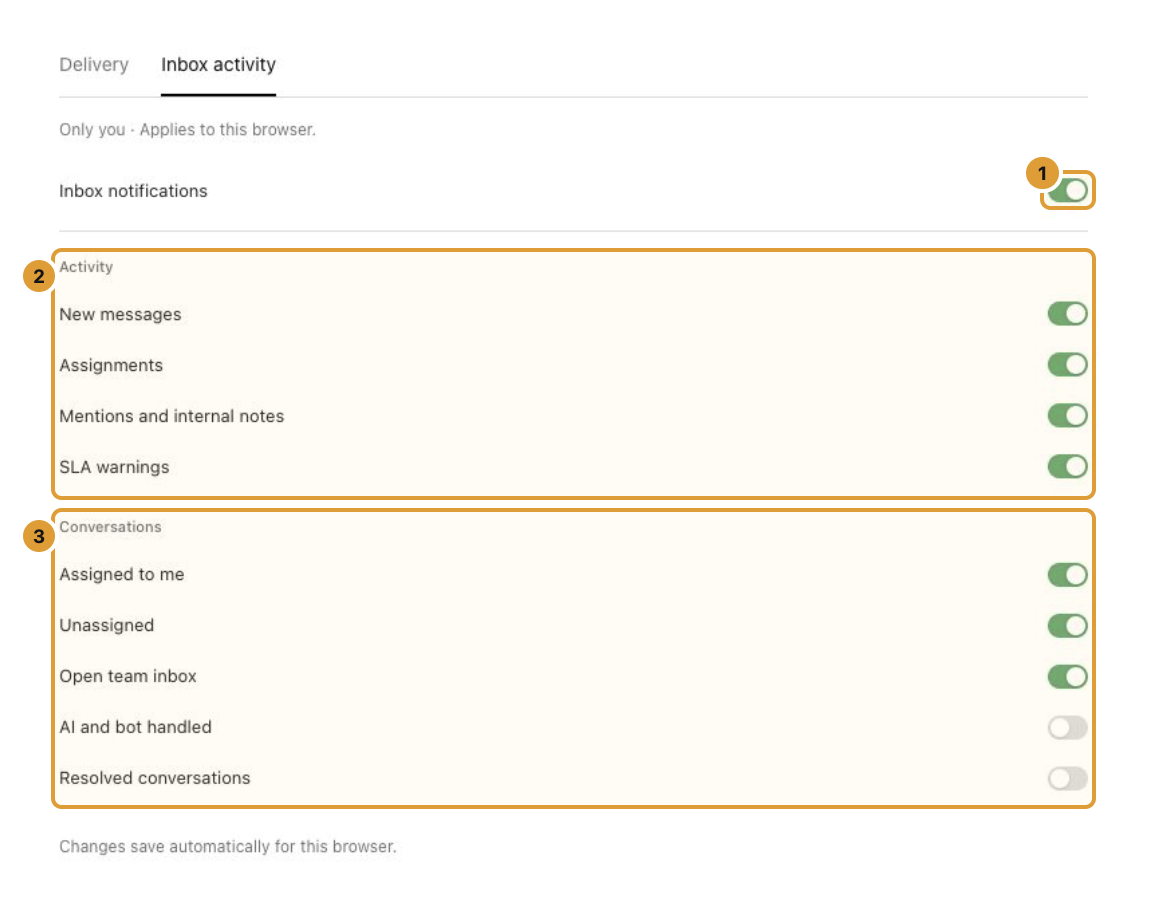
| Activity | What it covers |
|---|---|
| New messages | Customer replies that match the enabled conversation categories |
| Assignments | Another admin assigns a conversation to you |
| Mentions and internal notes | Another admin mentions you in an internal note |
| SLA warnings | Waiting-time alerts when response targets are at risk |
| Conversation category | What it covers |
| Assigned to me | Customer replies in conversations you own |
| Unassigned | Customer replies in open conversations waiting for an assignee |
| Open team inbox | Customer replies in other open team conversations |
| AI and bot handled | Customer replies while AI is handling the conversation |
| Resolved conversations | Customer replies on closed or resolved conversations |
For new-message alerts, both New messages and the applicable conversation category must be enabled. Assignment, mention and SLA preferences select their own activity types. These switches choose notifications; they do not assign, resolve or reopen a conversation.
Verify and troubleshoot
Reopen Notifications in the same browser and confirm your choices. For desktop alerts, leave Chat in the background and test with authorized team activity. Browser alerts are intended for when Chat is in the background. Check the site’s notification permission, the operating system’s notification and focus settings, the master Inbox switch, the relevant activity type and the matching conversation category.
If sound is missing, use Test sound and check browser audio permissions, the device’s volume and mute settings. Changing browsers or clearing site data can require configuring these preferences again.
Continue
Assign, hand off, and resolve conversations Set support business hours and outside-hours replies