What business hours do
Business hours set the schedule used for the support handoff acknowledgement. When the schedule and outside-hours reply are enabled, a customer handed over to support while the team is closed receives the configured away message in that acknowledgement. AI answers and staff replies can still be available outside these hours; the schedule does not close the Inbox.
Open Dhru Chat → Settings → Business hours in the correct workspace. You need permission to edit these settings. The screenshots show an example test workspace; the outside-hours example was discarded without saving.
Enable the schedule and choose a timezone
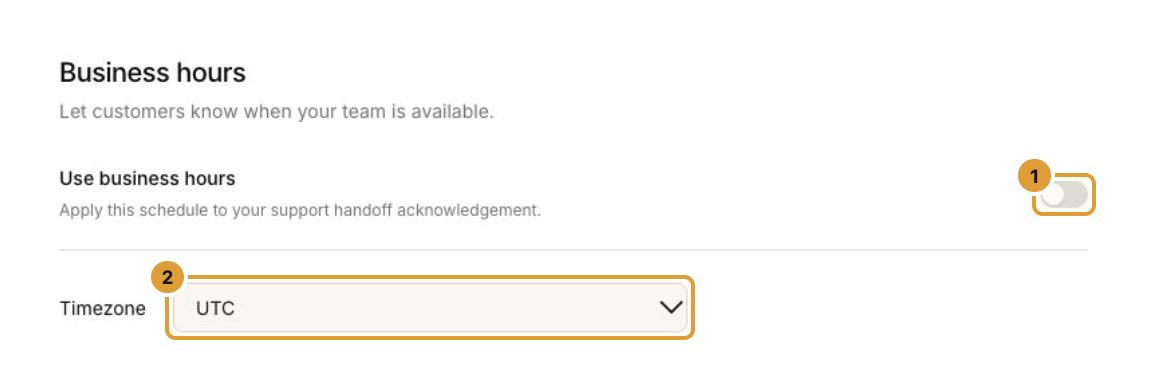
- Turn on Use business hours (1). When it is off, the schedule does not determine an outside-hours reply.
- Choose the Timezone (2) in which your team’s schedule and closure dates should be interpreted. Review it before setting the times.
Set the weekly schedule
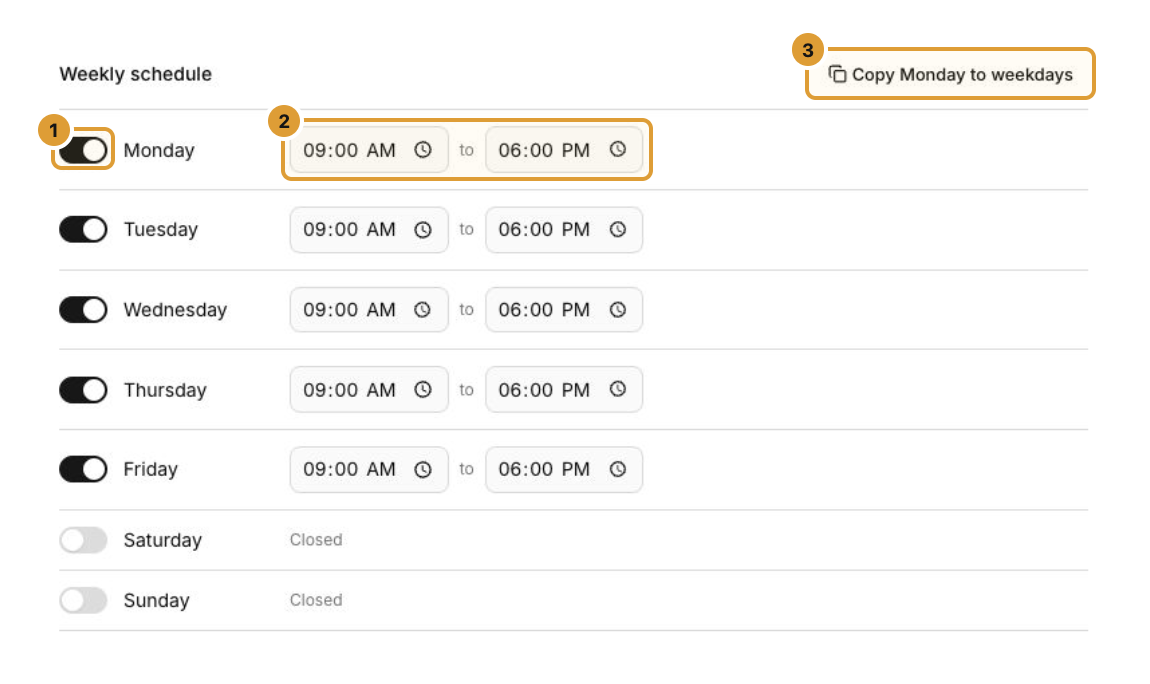
- Use each day’s switch (1) to mark the team open or closed.
- For open days, set the opening and closing times (2). Closing must be later than opening on the same day; overnight ranges are not supported.
- To reuse Monday’s schedule on Tuesday through Friday, select Copy Monday to weekdays (3). Review each day afterward.
The schedule applies from the opening time up to, but not including, the closing time in the selected timezone.
Add holidays and closures
Under Holidays & closures, choose Add date (1). Enter a name and a date, then choose Add date in the dialog. The date is added to your unsaved settings; it takes effect after Save changes. A closure overrides the weekly schedule for the entire date in the selected timezone.
You can remove an added date using its remove button. Use unique dates and add up to 50 closures.

Write the outside-hours reply
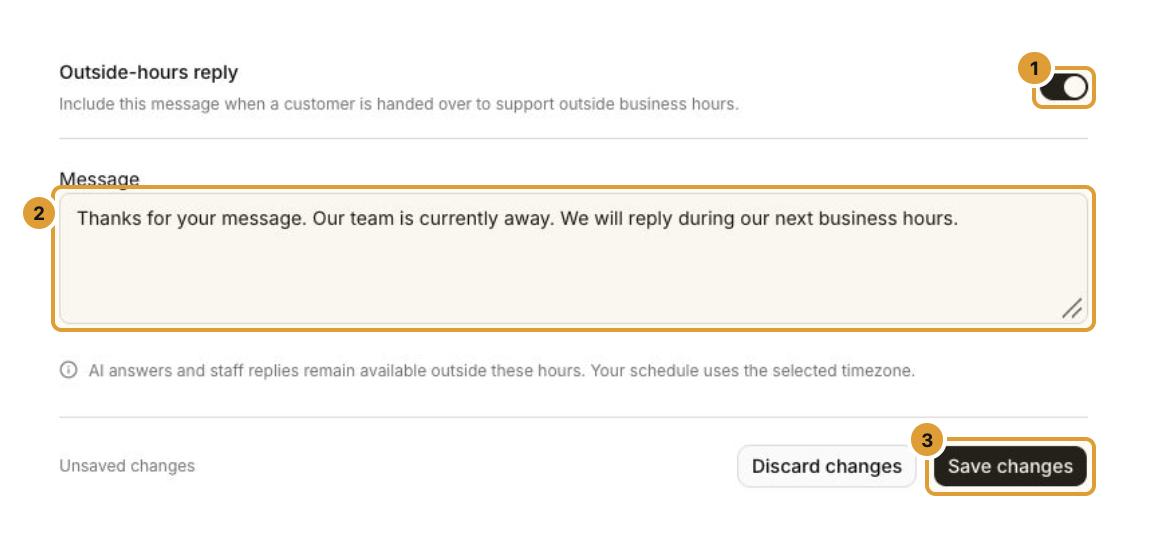
- Turn on Outside-hours reply (1).
- Enter a clear Message (2), up to 400 characters. The message is required when the reply is enabled.
- Review the schedule, timezone, closures and message, then choose Save changes (3). To abandon edits, choose Discard changes and confirm.
Both Use business hours and Outside-hours reply must be on for the message to replace the normal support handoff acknowledgement when the team is closed. Turning off either switch stops this outside-hours message from being used.
Verify the result
After saving, reopen Business hours and check the saved values. Test a handoff with an authorized test conversation during a closed period and check its acknowledgement; do not send test messages to customers. A saved schedule alone does not prove that a particular customer received a message.
Continue
Assign, hand off, and resolve conversations Enable or disable AI and live-chat features