Create and update a task
Before you begin
Choose the correct task board. The fields and allowed status changes depend on that board’s configuration and your permissions.
Create the task
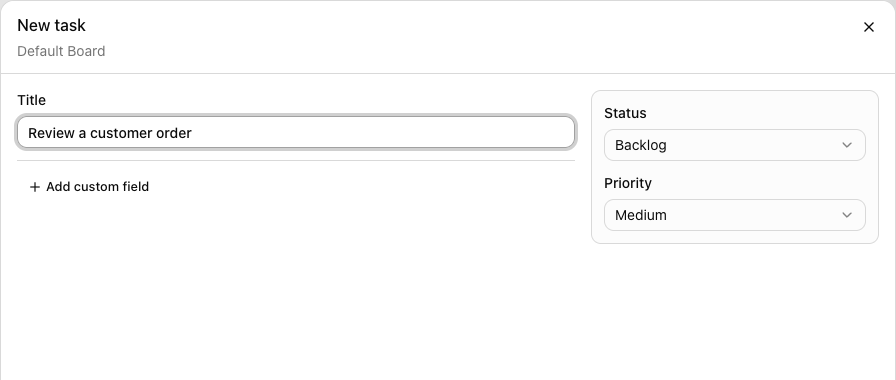
1. Choose **New task** or the add-task control in a column.
2. Enter a clear **Title** describing the work.
3. Review **Status** and **Priority**.
4. Complete the board’s additional fields when available.
5. Select **Save** and confirm the task appears in the intended board and group.
Update existing work
Open the task to edit its fields. Use only the customer or order references needed to locate the authorized record; do not put secrets into task text. Save and confirm the displayed values. A task about an order does not itself change the order status or process a payment.
Review History
Open the task’s **History** tab to review its activity log, recorded changes, and workflow actions. Use it when a status move or required check needs explanation.
If a status move is blocked
Read the validation or workflow requirement. Complete the required fields or authorized customer verification instead of creating a second task or repeatedly dragging the same card. Use an allowed workflow transition and confirm its final saved status.