Open Tags settings
Open Dhru Chat → Settings → Tags in the correct workspace. Tags are shared conversation labels. You need Inbox editing permission to create or change them; archiving requires the corresponding delete permission. The screenshot example was discarded without creating a tag.
Find or create a tag
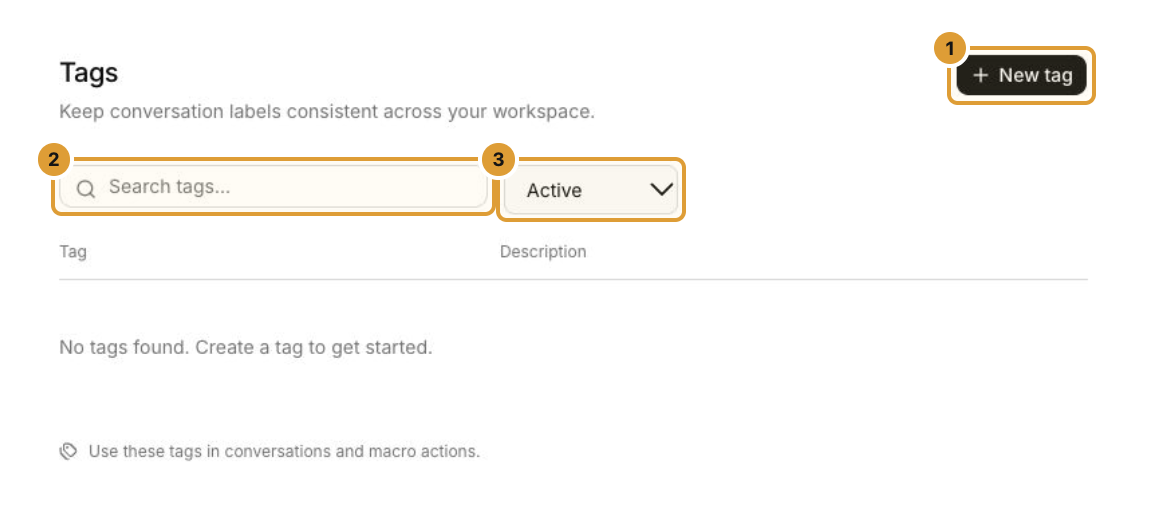
Choose New tag (1). To check whether a suitable label already exists, use Search tags (2) and the status filter (3). The list can show Active, Inactive, Archived or All statuses. Search before adding a similar label.
Name and style the label
- Enter a clear Name (1), such as Billing.
- Add an optional Description (2) so the team knows when to use it.
- Choose a preset Colour or use the custom colour control (3), then check the preview. The Billing screenshot is an unsaved example.
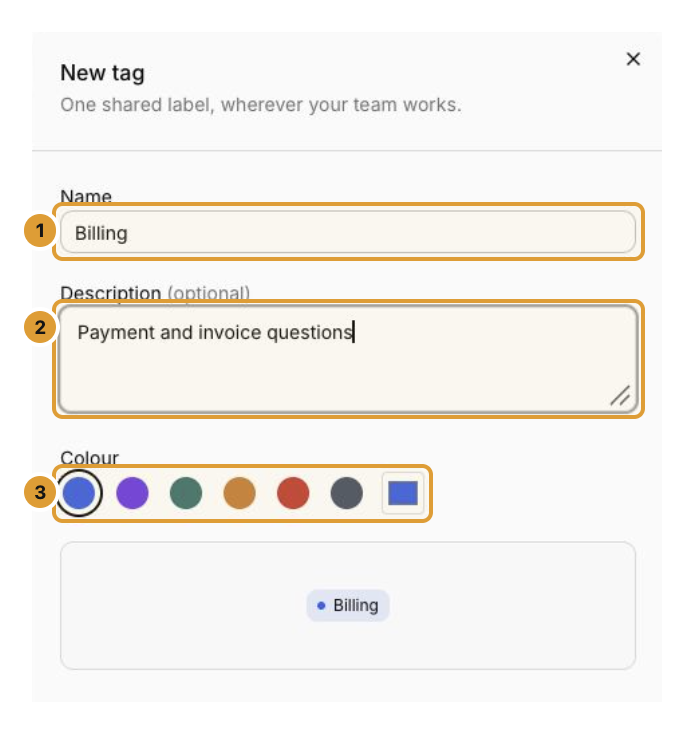
Select Create tag to save it, then confirm it appears in the Active list. A colour preview alone is not a saved tag. Cancel an unchanged form, or discard unsaved edits when prompted.
Edit, archive or restore a tag
Use a tag’s edit button to change its name, description, colour or status, then choose Save changes. Use Inactive when you want to retain the label without making it available as an active tag.
To archive an existing tag, choose Archive and read the confirmation. It is no longer available for new conversation tagging; existing conversation labels are preserved. To restore it, filter for Archived, open it, choose Active in Status, and save.
Use tags in conversations and macros
In a conversation’s details, open Conversation tags → Edit tags and choose the labels that fit the case. Review the result after applying. Saving a tag in Settings does not add it to a conversation.
Macros can add or remove tags after a successful reply send. Configure the intended tag slugs in the macro action and review queued actions before sending.
Continue
Use macros and article suggestions Assign, hand off, and resolve conversations