Give Dhru temporary access to your Fusion Pro workspace when the support team asks you to enable it. This guide uses Dhru Support Staff #4, support04@dhrusoft.com, as the example and covers both admin panels.
Before you start
- Sign in to the correct workspace with the customer’s owner or administrator account, with permission to manage Users & Roles.
- Confirm which numbered support account and role Dhru needs for your support request. Use Staff #4 only when it is the requested account.
- You do not need to invite the account, wait for invitation acceptance, or share your password.
- Only one numbered support account can be active in a workspace at a time. These support accounts do not use your paid user seats.
The screenshots show an unsaved example. The administrator role is for illustration; select a role with the permissions needed for your support task. Leave Dhru Admin Access off unless Dhru specifically needs that separate access.
Enable Staff #4 in the new admin panel
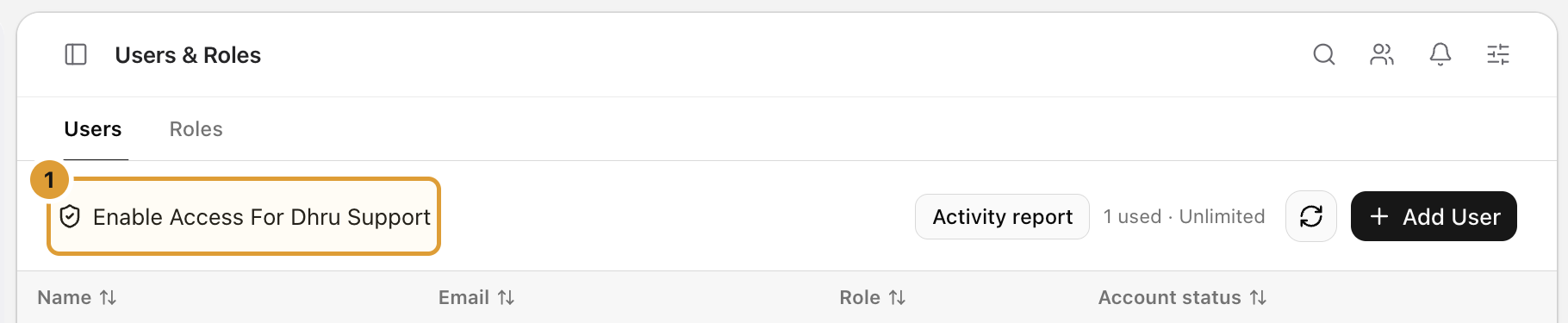
- Open Settings → Users & Roles → Users. Select Enable Access For Dhru Support on the left of the toolbar (highlight 1).
- In the drawer, click the Dhru Support Staff card or turn on its switch (highlight 2).
- Under Support account, select Dhru Support Staff #4 and check that the email is support04@dhrusoft.com (highlight 3). Staff choices appear from #4 down to #1; #4 is the default for new access.
- Choose the required Role (highlight 4). A role must be selected explicitly before new access can be saved.
- Review the 48-hour limit, then click Save access (highlight 5). For a first grant, the new panel may label this button Enable Access. Wait for the success message.
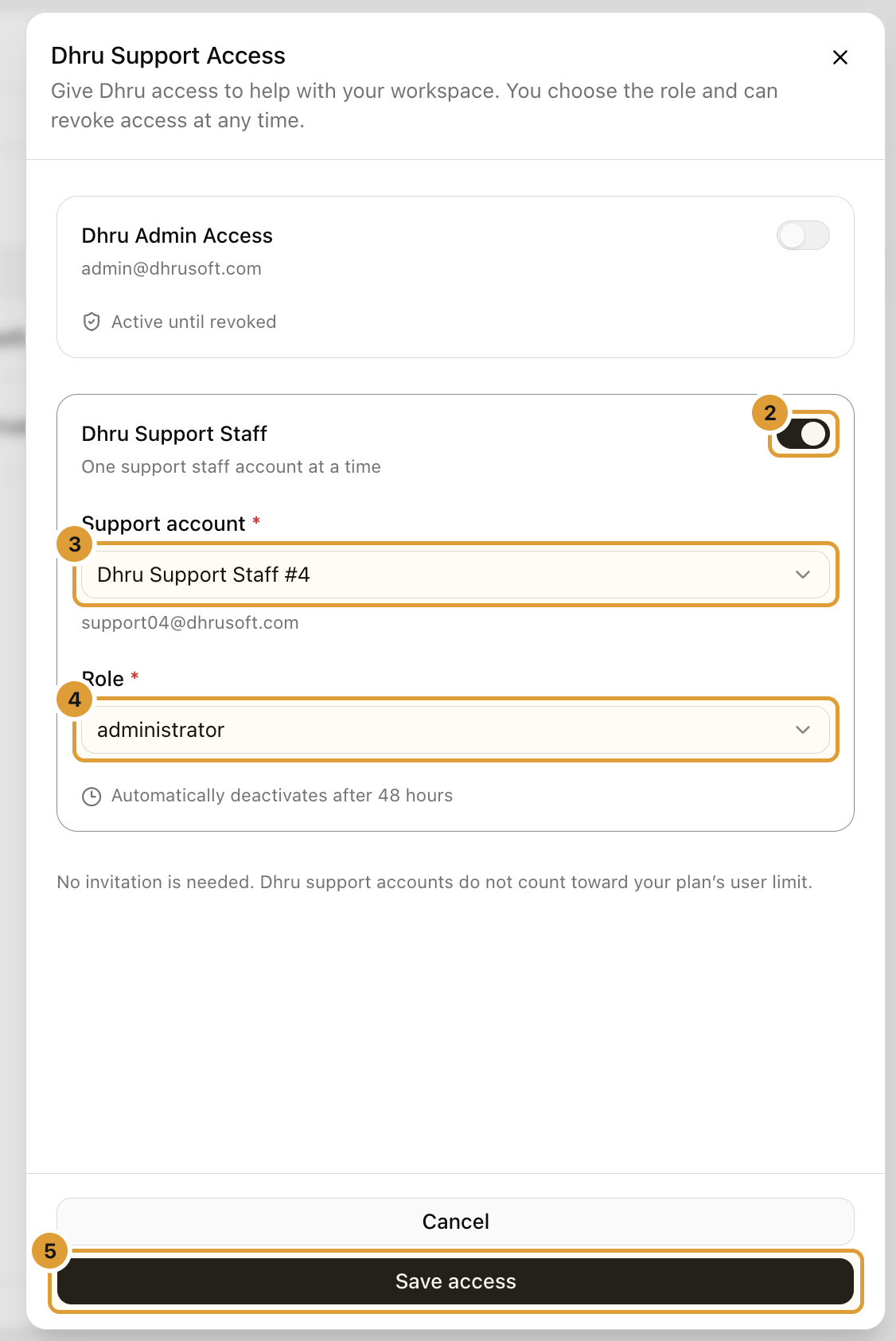
After a successful save, the selected support account is active immediately. Its 48-hour window starts at activation; there is no invitation step.
Enable Staff #4 in the classic admin panel
- Open Settings → Users & Roles, then select the User tab. Click Enable Access For Dhru Support beside the Users heading (highlight 1).

- Click the Dhru Support Staff card or turn on its switch (highlight 2).
- Select Dhru Support Staff #4 and confirm support04@dhrusoft.com (highlight 3).
- Choose the required Role (highlight 4).
- Check the 48-hour limit and click Save access (highlight 5). Wait for the success message.
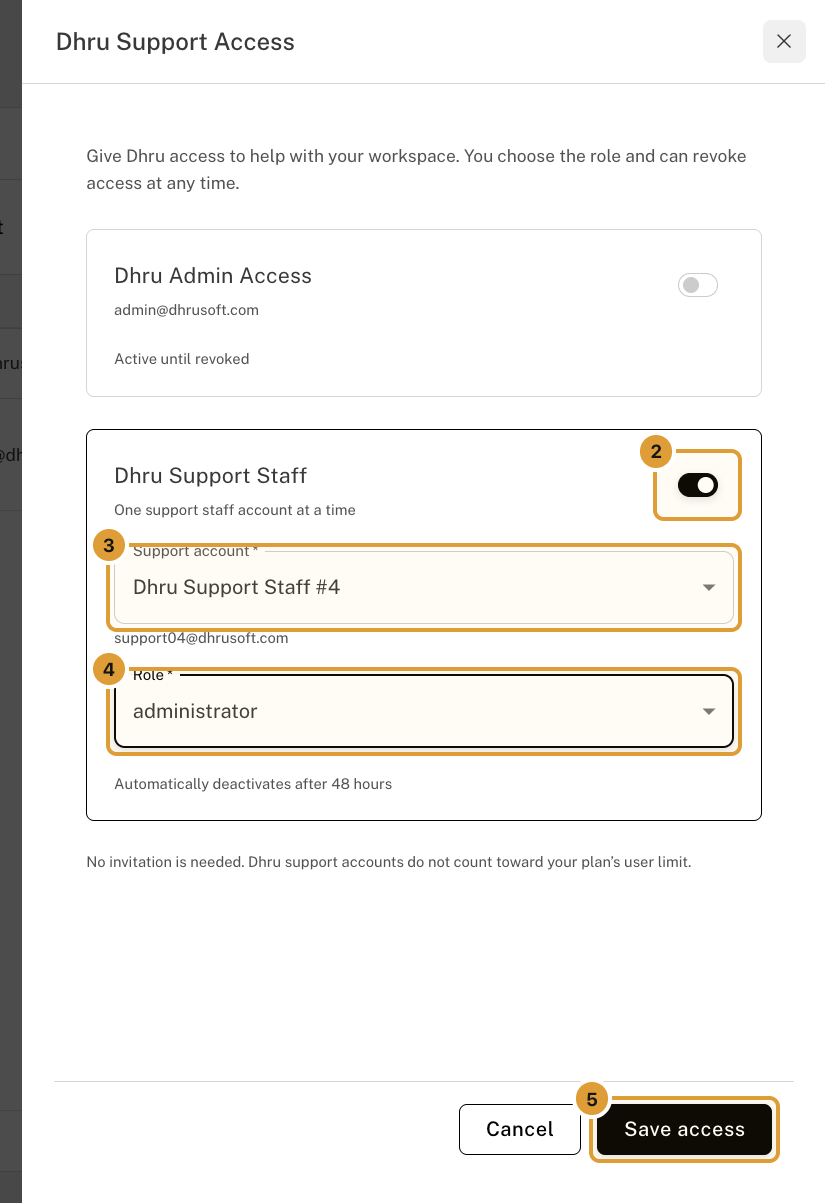
Both admin panels manage the same workspace access. You do not need to enable Staff #4 a second time when switching panels.
Check the remaining time
Return to the Users list. The account is marked with a Dhru Support badge. While numbered staff access is active, the row shows a countdown such as Deactivates in 5h 20m and a small remaining-time bar. Hover over or focus the time indicator to see the exact expiry.
The countdown refreshes every minute and when you return to the browser tab. Access ends automatically after 48 hours, even if the page has not refreshed. The account stays visible as Inactive · Access expired.
Revoke, re-enable, or switch support access
- Revoke early: open the support row or the toolbar button, turn off Dhru Support Staff, and save. Access is revoked when the change is saved.
- Re-enable expired access: open the same drawer, turn staff access on, select the requested account and role, and save. This starts a new 48-hour window.
- Switch numbered accounts: select a different support staff account and save. The previous account loses access and the replacement starts a new 48-hour window.
- Change the role: edit it in the support-access drawer and save. A role change does not restart the existing 48-hour window.
Optional Dhru Admin Access
Dhru Admin Access is a separate section for admin@dhrusoft.com, with its own role. Enable it only if requested. It remains active until you revoke it; it does not expire after 48 hours. You can enable numbered staff access while leaving Admin access off.
If you cannot find or save the option
Button missing or unavailable: confirm that you are using the customer’s administrator account with Users & Roles management permission. A Dhru support identity, including admin@dhrusoft.com, cannot grant or renew support access. In the classic panel, the toolbar button is hidden for these accounts.
Save button disabled: turn on the required section and choose a role. If the saved access already matches your selection, there may be no change to save.
A save was interrupted: use the drawer’s retry option for the pending change, then check the Users list for the confirmed result. If access still cannot be enabled, contact Dhru with the workspace name and the message shown. Do not send your password.